
Manage Displays Collection
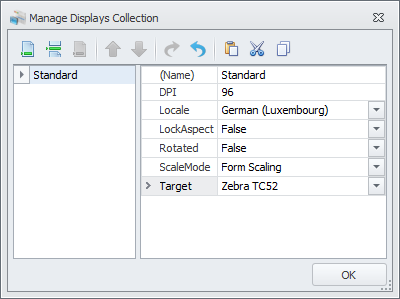
The Form > Display > Manage Displays Collection window allows you to have multiple displays linked to a form so you can host a variety of displays for an application. For example, you can create a Cycle Count application with three displays where each one is localized in a different language and designed for a specific target device. The application will display in the chosen device at runtime (see Testing).
Adding a new display
If you select a RFgen factory-provided Device image in the Target field, and set its orientation, the display height and width will be shown in the Form > Size property. For more information about the target Device feature, see Devices. Use the icons on top to append, insert, move or remove a display. On the right column, select the value to be applied. "(Name)" add the name of the display; the DPI is a preset value for scaling the display relative to device selected in Target. The Target drop down contains the list of target devices and their screen details. At runtime, the application will display in the skin of the selected target device. The Locale drop down sets the local of the language to be used with this display. At runtime, the text will appear localized if the Solution Explorer > Language Translation and Configuration > Environment Properties are setup properly.
Manage Display Collection Properties
(Name) - The unique name for your display. No spaces or special characters are allowed (for example, don't use @, #, $, %).
DPI - the resolution value. Windows standardizes to 96 dots/inch. This should match the scaled resolution set for the device display area.
Locale - Select the locale (Language) for the display. Additional setups are needed. See To Localize Text.
LockAspect - True will lock the display's aspect ratio so that if the app is displayed on a much larger screen than it was designed for, the ratios are retained. False will allow the display to reset its aspect ration relative to the edges of a screen.
Rotated - All displays will automatically rotate to portrait or landscape mode when the user rotates the device. Depending on what you designed the app for (i.e. portrait mode), True will enable/allow the device to allow the display to be rotated. False will not allow the device to rotate the image. (Note: This property replaced the Landscape property.)
ScaleMode - This sets which method the display uses to present the objects using DPI (dots per inch) or Form Scaling. The DPI value will scale the display using a combination of the target device's dpi values (i.e if the DPI property is set to 96 then the display is scaled to this value.) Form Scaling will display objects in accordance to the Form's Size values (i.e. the Size Width and Height). How the display scales will also take the Form > AutoSize values into consideration.
Target - Enables you to select and display the skin of the target device image as your display. See To add a target device to upload your own customized device.